Preface
Edit Chart allows you to manually build Chart structures in the Teams user interface, Role by Role. For smaller org structures this will often be the preferred approach. Note that you can then export this structure to other systems, if you wish (email us at support@jostle.me to learn more about this).
Certain types of team imports can also be done via SFTP. More information about creating a CSV for Team importing (via SFTP) can be found here.
About importing Charts
These two methods are available for System Admins to import Charts at Admin Settings > Views and Functions > Import Chart into Teams:
- CSV: This is a simple import that can be used to create new structures or update existing ones. This is usually the best format for importing/syncing org charts from other systems.
- TXT: This is a full-featured import that can be used to create or update complex Charts that include all the advanced org chart features that Jostle provides. This format is also used for exported/importing a backup of a Chart.
Note: When you import in CSV mode, your file must be in CSV format. When you import in TXT mode, your file can have either a .csv or .txt extension.
CAUTION: If you import into an existing Chart it will overwrite (replace) the existing Chart. If you are making significant changes you should first import your file into a test Chart first. You can Hide this test Chart so it is only visible to Chart Admins if you want (via the Chart's i-Menu).
Table of contents
- Defining an org structure in a CSV file
- Importing a CSV file into a Chart
- Editing an org structure in a TXT file
- Importing a TXT file into a Chart
- Template download
Defining an org structure in a CSV file
For many organizations, the main reports-to hierarchy exists in another enterprise system. By exporting that data and formatting it into a suitable CSV you can import into a Chart.
When the master copy of your org structure is not in another system, defining it in a CSV is an alternative to doing via Edit Chart.
First you need to create the CSV that defines your org structure. You can do this in Excel or Google Sheets and then save it in CSV format. The attached pre-formatted template will get you started. Note that there are just four parameters specified in the CSV: Username, Supervisor Username, Role Name, and Team Name. Role Name and Team Name are optional.
Basic reports-to structures
For a simple reports-to structure, only these two columns are required:
- A column with Username in the first row and the Username for each User in the following rows.
- A column with Supervisor Username in the first row and the Username for the Users reports-to supervisor in the following rows.
Tip: System Admins can download a report of all Users and their Usernames at Administration Settings > User Data To/From Other Systems > Extract/Manage All User Data (CSV).
Note: The structure must be contiguous; there must be a single reports-to up for every Role except for the very top Role in the Chart (e.g. the CEO).
To make the Chart and people's responsibilities clearer, it usually best to also include these two columns:
- A column with Role Name in the first row. This will define the Role of each User (employee) in the hierarchy. Often this maps to a person's job title, but doesn't always have to (learn more here).
- A column with Team Name in the first row. If you leave this field blank during your import, Team Names like "Bill Smith's Team" will be automatically assigned.
Open Roles
If you want to define a structure that includes a Role that has not been filled (e.g. is vacant), you can do so by entering a dummy name in the Username field (for example, "emptyusername"). This will create an Open Role card that can be assigned to someone later.
Note: Each dummy Username must be unique and cannot use an email format.
Defining Sub-Teams in a CSV import
Jostle Charts allow you to define Sub-Teams, which provide a label on parts of a team. So, for example, if you have a Team that has 20 people on it, where 15 of them all perform the same function, creating a Sub-Team will group these 15 Roles together and give them a Sub-Team Name.
To define a Sub-Team in a CSV file, first add a row that defines the Sub-Team with:
- A unique dummy Username
- The Supervisor Username for the Sub-Team
- "Sub Team" as the Role Name
- The name of the Sub-Team as the Team Name
Then designate the dummy Username for the Sub-Team as the Supervisor Username for everyone on that Sub-Team.
Org Units and CSV imports
You cannot create an Org Unit via a CSV-mode upload. You can using a TXT-mode upload.
If an Org Unit exists the platform makes best efforts to preserve it during a CSV upload. For this to work, Role Names and Team Names for the node the Org Unit is defined on need to be preserved.
Defining Self-managed Teams in a CSV import
Often Teams are self managed, meaning that they do not have a person filling their top Role. Jostle Charts provide Team Cards for this purpose.
For example, an informal basketball team might not have a formal leader. So everyone on this team reports to a Team Card named "Basketball Team".
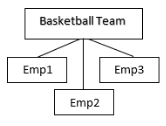
To define a Team Card in a CSV file:
- Enter a placeholder Username for this Team Card (eg. "basketballteamcard")
- If the Team Card is the top Role in the Chart, leave the Supervisor Username field empty
- Enter “Team Card” in the Role Name column
- Enter your Team's name in the Team Name column
- For each Role (row) reporting to this Team Card enter the Team Card Username (basketballteamcard) as its Supervisor Username.
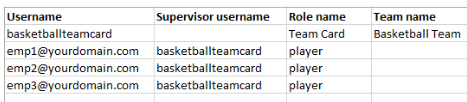
Note: If you do not add the Team Name (leave this field blank) the Team will be called "Unnamed Team".
Importing a CSV file into a Chart
To upload a CSV file that defines an org structure, a System Admin should:
- Go to Admin Settings > Views and Functions > Import Chart into Teams
- In the Import Options section, select CSV and any other optional settings
- Click Choose File to locate and select your CSV file
- In the Destination section, make the appropriate Category and Chart Selections (if you're importing your organization's main reports-to hierarchy, select the Main Organization category)
- Click Upload. If needed, follow the onscreen mapping prompt
Note: A field mapping screen will only appear if your column headers are anything other than our defaults (Username, Supervisor Username, Role Name, and Team Name). If our column header defaults do exist in the .csv file being uploaded, the mapping step will be skipped.
If your CSV upload is unsuccessful, an error report will be generated that you can download to learn what failed. Here are some common errors:
Supervisor Username field left blank. You can only have a single Role that does not have a supervisor defined (i.e. just the CEO or Team Lead Role at the top should be the only Role that does not have a value for Supervisor Username.
People are reporting to themselves. That is, a Username and its corresponding Supervisor Username are identical.
Specified user was not found. This occurs when there is not a corresponding Username defined as a User in Jostle. This most commonly happens when a User's work email has not been set as their Username in their Profile, but was entered in the CSV as if it were.
Tip: If the upload simply fails, try toggling the UTF-8 setting.
Editing an org structure in a TXT file
The following process explains the TXT import mode, which is particularly useful for importing existing structures that were previously exported (either to use as a backup or to make edits to existing Charts and then re-import back into Teams).
Tip: The easiest way to get started with mastering TXT format is to export an existing Chart.
Editing a Chart exported as a .txt file
Tip: When working with an exported TXT file, it's much easier to have it in CSV format. Here's how:
- Export the .txt file for an existing Chart ((Chart Admins can do this via the Chart i-menu)
- Manually edit the file name to change the termination from .txt to .csv.
- Open the .csv in Excel of Google Sheets, so that it is easy to understand. Edit it as required.
- Import the edited .csv file while selecting the .txt mode import option (see below).
If you have exported an org structure via .txt file, it will contain over 20 columns of Chart data. However, for typical editing purposes there are only 8 columns to be concerned with:
-
Id—This sequentially numbers each row and allows the hierarchy to be constructed.
Note: This must be the first column and does not need a header value in the first row. -
ReportsToID—This is the ID (row number) of the supervisor of this Role.
Notes:- This should be left blank for the top Role (e.g. the CEO)
- This should be read as “Reports To ID” not “Reports Told”.
- Username—The Jostle Username of the employee assigned to this Role. If this field is empty then the created Role will be open (vacant).
- RoleName—Sets the Role Name.
-
RoleType—Defines the type of Role, as follows:
- DIRECTED_TEAM (a normal Team with a leader)
- CONTRIBUTOR (which indicates a leaf node)
- COLLABORATIVE_TEAM (which indicates this is a Team card)
-
RelationshipType—Defines the relationship between this Role and the the one it reports to, as follows:
- PRIMARY_SUPERVISOR (a solid line report up)
- SECONDARY_SUPERVISOR (a dotted line report up)
- COLLABORATOR (a collaborative Role associated with the designated reports-to role)
Note: This field will be blank for the top Role in the Chart.
- TeamName—This is populated with the name of the Team if this Role is the team lead.
-
OrgUnit—This is populated with the name of the Org Unit, if there is one defined at this Role.
Notes:- You cannot create an Org Unit via a TXT mode import.
- If you delete a row that corresponds to a Role where an Org Unit is defined, that Org Unit will be deleted when you import. That's problematic if you have content targeted using this Org Unit.
Notes:
- If you want to change the ordering of your structure, it's better to use the Organize option on the Edit Teams screen post-import.
- The ID, RoleType and RelationshipType fields cannot be left empty when you re-import.
- If RoleName or TeamName are left empty, the roles will be created with default names, like 'New Role' or 'New Team'.
- Username can be left empty, but if it's filled in with a user that doesn't exist, importing that row will fail.
Importing a TXT file into a Chart
To upload a TXT file that defines an org structure, a System Admin should:
- Go to Admin Settings > Views and Functions > Import Chart into Teams
- In the Import Options section, select TXT and any other optional settings
- Click Choose File to locate and select your TXT file (which can be in .csv format - just select .csv format > choose the file > select .txt format radio button).
- In the Destination section, make the appropriate Category and Chart Selections (if you're importing your organization's main reports-to hierarchy, select the Main Organization category)
- Click Upload.
If an import fails, the errors will be reported in the Results file that can be downloaded from the Status page at Admin Settings > Views and Functions > Import Chart into Teams.


5 Comments